Windows + WSL approval layer

Approve AI coding actions without leaving Windows.

helm catches Claude Code, Codex, and Gemini CLI requests before they touch your machine. Review commands, file edits, plans, and questions from a desktop panel instead of alt-tabbing back to the terminal.

Windows 10 / 11
WSL2
Claude Code · Codex · Gemini CLI
helm approval
Claude Code · Bash
Danger

This could alter critical data.

The assistant wants to run a destructive shell command. Review the command and decide whether to let it continue.

rm -rf ./cache && curl https://example.com/install.sh | bash
Why helm

Built for the Windows terminal workflow.

helm keeps approvals, launch, tray, minibar, and history in one place so your terminal workflow stays fast and your decisions stay visible.

Plain-language approvals Review what the assistant wants to do before you let it run.
Risk-aware defaults Safe read-only commands can pass instantly. Dangerous actions never do.
Windows-native control Tray, minibar, hotkey, launch panel, and approval history stay on the desktop side.
Ask and plan review Answer agent questions and review full Markdown plans without going back to the terminal.
History and activity feed See what happened, what you approved, and what your agents finished most recently.
Managed terminal sessions Launch sessions from helm, remember recent projects, and jump back to the terminal when needed.
Supported agents

Three agents, deep support.

helm does not try to support every assistant shallowly. It goes deep on the three CLI tools that matter most for the Windows + WSL workflow.

Claude Code Commands, edits, writes, plan review, AskUserQuestion, launch modes.
Full support
Codex Approvals, hooks, launch panel, session management, history.
Full support
Gemini CLI Shell approval normalization, writes, launch panel, activity feed.
Full support
How it works

Hooks forward requests. Windows stays in control.

1 Install the bridge helm detects WSL, installs hooks, and verifies the approval service.
2 Launch an agent Pick a Linux project path and a launch mode. helm opens the terminal session for you.
3 Review the request Commands, edits, plans, and questions surface in the panel with human summaries and previews.
4 Approve or stop it Allow, deny, answer, or jump back to the managed terminal. History and activity stay visible.
Demo

The entire loop fits in one minute.

Claude Code wants to change a file

helm surfaces the request on Windows, shows a human summary, and keeps the risky command visible.

Claude Code · Edit\n/home/wxinx/projects/marvis/src/app_state.rs\n\nAdd a safer fallback when the approval channel closes.

Approve

Review the request, answer the question, or jump back to the managed terminal.

1. Connect once Detect WSL, install the bridge, and verify the local approval server.
2. Launch in a Linux project Pick a WSL path and a launch mode. helm remembers recent projects for next time.
3. Review, answer, or jump back Approvals, plans, and questions stay in the Windows UI while the terminal session stays in sync.
Beta Access
CNY 19 founding beta access

This is the current beta offer for helm on Windows + WSL. It keeps helm active on up to 2 personal Windows devices during beta and includes 1 free month when the formal release ships.

Mainland China checkout is live Buy now, then copy the Beta Access key shown on the success page back into helm Settings to finish activation.
2 personal devices + formal-release bonus The current beta access covers up to 2 personal Windows devices and includes 1 free month after formal launch.
Checkout paths

Mainland China checkout is live now. The current path already covers payment, key delivery, and activation back inside the app. International crypto checkout will ship separately instead of being routed through the current CNY flow.

Download

Install helm like a normal Windows app.

Download the Windows installer, run it, and open helm from Start.

What you get
Windows-native approval panel Tray, minibar, launch panel, history, and activity feed stay on the desktop side.
Three serious integrations Claude Code, Codex, and Gemini CLI all route through the same approval surface with a consistent workflow.
Release delivery stays predictable helm can find newer versions in the app, download the MSI from GitHub Releases, and hand installation back to Windows.
Media

The desktop flow is the product.

helm minibar expanded screenshot
The floating minibar is the fast path: it tells you which agent is asking, how risky it is, and when you need to intervene.
helm home idle screenshot
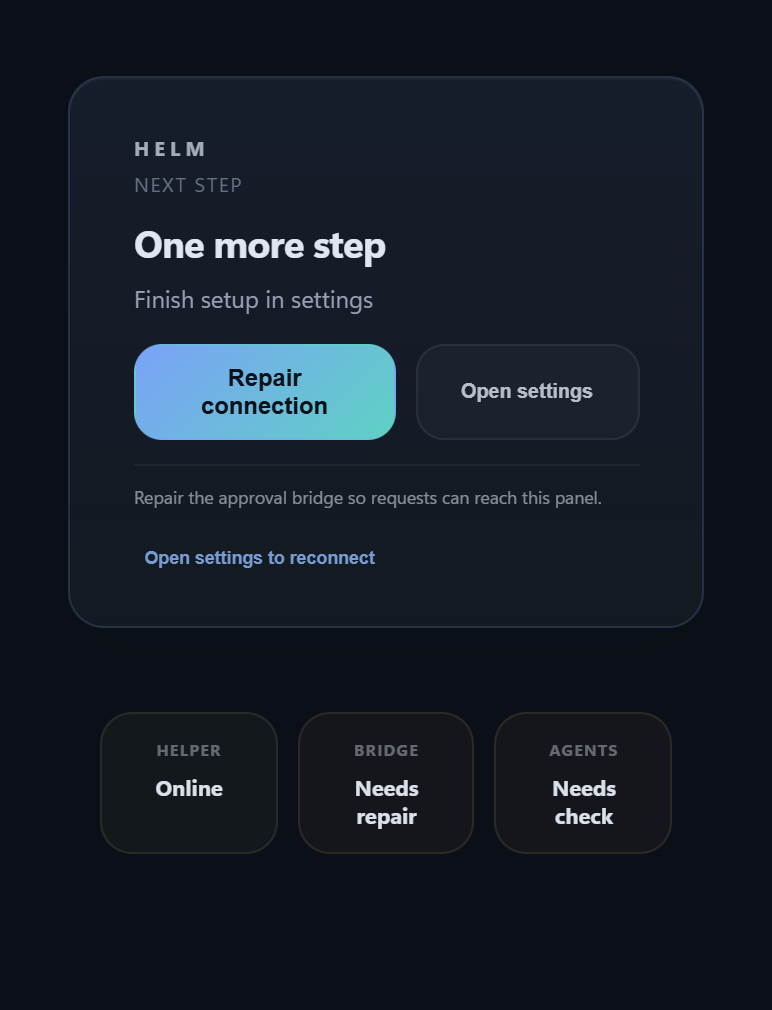
Home stays quiet until it matters. It shows current state, recent sessions, and the next action without turning into a crowded dashboard.
FAQ

What users usually ask first.

Does helm slow agents down? No. Safe read-only commands can auto-approve immediately. Only review-worthy actions wait for your decision.
Does it work without WSL? No. helm is designed specifically for the Windows + WSL workflow.
Can it jump back to any terminal tab? No. It jumps back to sessions launched and managed by helm. That constraint keeps the workflow reliable.
How many devices are included? The current beta access covers up to 2 personal Windows devices.
What do I get when I buy? You get beta access for the current Windows release, ongoing beta updates, use on up to 2 personal Windows devices, and 1 free month when the formal release ships.
Is this a lifetime license? No. The current offer is founding beta access for the Windows + WSL product, not lifetime ownership across every future platform.
How do updates work? helm can check for a newer version, download the MSI from GitHub Releases, and hand the installer off on Windows.
What happens if helm is down? Your agent keeps moving instead of getting stuck behind the desktop layer.